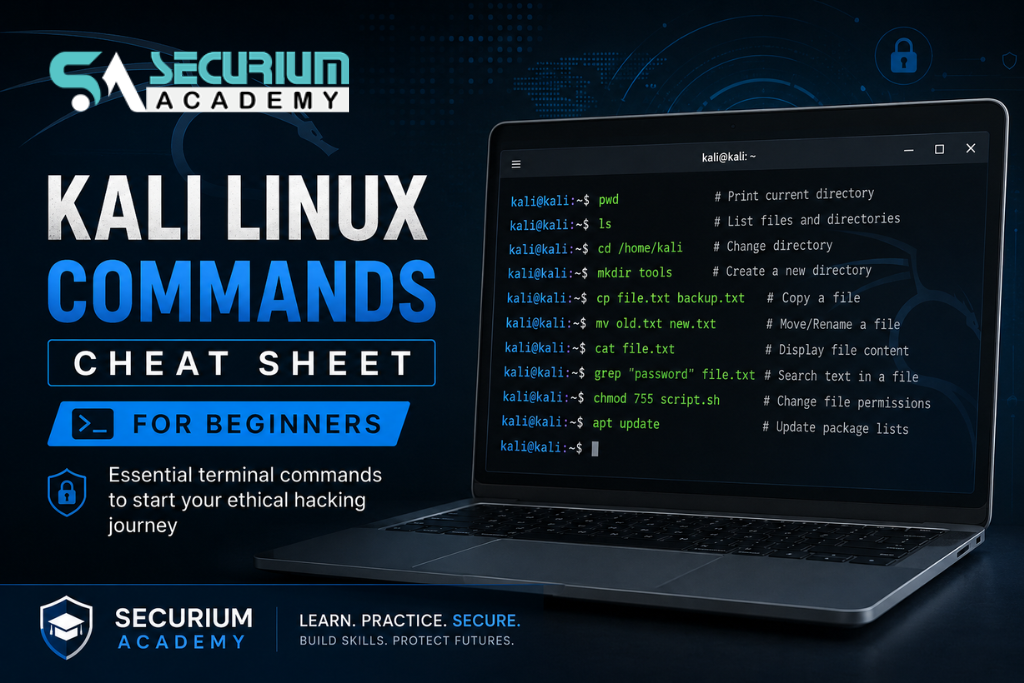
Kali Linux Commands Cheat Sheet for Beginners
Introduction
Kali Linux Commands help beginners control the system, manage files, install tools, check networks, update packages, and perform basic cybersecurity tasks directly from the terminal.
When you open Kali Linux for the first time, the terminal can feel a little intimidating. A black screen, blinking cursor, and lots of commands may look confusing. But the truth is simple: once you understand a few basic commands, Kali Linux becomes much easier to use.
This Kali Linux commands cheat sheet is written for beginners who want practical learning, not just a long list of commands. You will learn what each command does, where it is used, and how to practice safely without damaging your system.
What Are Kali Linux Commands?
Kali Linux commands are instructions you type in the terminal to communicate with the operating system.
Instead of opening folders, installing tools, or checking system details through a graphical interface, you can do the same work faster using the command line.
For example, you can create a folder, check your IP address, install a tool, view running processes, or open a file — all with simple terminal commands.
Most Kali Linux terminal commands are not completely different from normal Linux commands. Kali Linux is based on Debian, so many basic Linux commands work the same way.
That is why every beginner should first learn Linux command line basics before jumping into advanced ethical hacking tools.
Why Beginners Should Learn Kali Linux Commands
If you are learning ethical hacking, penetration testing, or cybersecurity, Kali Linux commands are your foundation.
Many beginners directly open tools like Nmap, Metasploit, Burp Suite, or Wireshark without understanding the terminal. This creates problems later because most real cybersecurity work requires command-line confidence.
Here is why learning basic Kali Linux commands is important:
| Benefit | Why It Helps |
|---|---|
| Better control | You understand what your system is doing. |
| Faster navigation | You can move between folders quickly. |
| Easier tool installation | Most tools are installed using terminal commands. |
| Better troubleshooting | You can check errors, processes, disk space, and network issues. |
| Strong hacking foundation | Ethical hacking commands are usually terminal-based. |
| Useful for labs | Helps in CTFs, certifications, and practical cybersecurity training. |
Once you become comfortable with commands, Kali Linux feels less like a complicated tool and more like a practical learning environment.
Basic Kali Linux Commands Cheat Sheet
Here are some basic Kali Linux commands every beginner should practice first.
| Command | Purpose | Example |
|---|---|---|
pwd |
Shows your current location | pwd |
ls |
Lists files and folders | ls |
cd |
Changes folder/location | cd /home/kali |
mkdir |
Creates a new folder | mkdir practice |
rmdir |
Removes an empty folder | rmdir oldfolder |
touch |
Creates an empty file | touch notes.txt |
cat |
Shows file content | cat notes.txt |
nano |
Opens a simple text editor | nano notes.txt |
cp |
Copies a file | cp file.txt backup.txt |
mv |
Moves or renames a file | mv old.txt new.txt |
rm |
Deletes a file | rm file.txt |
clear |
Clears the terminal screen | clear |
history |
Shows previous commands | history |
man |
Opens command manual | man ls |
whoami |
Shows current user | whoami |
date |
Shows date and time | date |
Do not try to memorize everything in one day. Practice 5–6 commands daily and use them in small tasks.
File and Directory Management Kali Linux Commands
File and folder commands are the first commands you should learn. They help you move around your system and manage your work.
To check your current location, use:
pwdThis tells you which directory you are currently inside.
To list files and folders:
lsTo see more details, including hidden files and permissions:
ls -laTo move into a specific folder:
cd /home/kaliTo create a new folder for practice:
mkdir practiceTo create a blank file:
touch notes.txtTo read what is inside a file:
cat notes.txtTo copy a file:
cp file.txt backup.txtTo rename a file:
mv old.txt new.txtTo delete a file:
rm file.txtBeginner tip: Be very careful with rm. Files deleted from the terminal may not be easy to recover. Never run delete commands blindly, especially commands that include rm -rf.
A safe habit is to create a folder named practice and test your basic Kali Linux commands only inside that folder.
System Information Kali Linux Commands
System information commands help you understand your Kali machine. These commands are useful when your system is slow, storage is full, or you need to check system details.
| Command | What It Shows |
|---|---|
uname -a |
Kernel and system details |
hostname |
Your system name |
whoami |
Current logged-in user |
id |
User ID and group details |
uptime |
How long the system has been running |
df -h |
Disk space usage |
free -h |
RAM usage |
top |
Live running processes |
htop |
Interactive process viewer |
Example:
uname -aThis shows information about your Linux kernel and system.
To check disk space:
df -hThe -h means human-readable, so the output is easier to understand.
To check memory usage:
free -hTo see which programs are running:
topIf htop is installed, it gives a cleaner and more interactive view:
htopThese commands are useful for troubleshooting. For example, if Kali Linux becomes slow, top or htop can help you find which process is using too much CPU or memory.
Network Kali Linux Commands for Beginners
Network commands are important for cybersecurity students because they help you understand IP addresses, connectivity, DNS, and basic network behavior.
| Command | Purpose |
|---|---|
ip a |
Shows IP address and network interfaces |
ifconfig |
Shows network interface details |
ping |
Tests connection to a host |
traceroute |
Shows the path to a destination |
netstat |
Shows network connections |
ss |
Modern alternative to netstat |
nslookup |
Checks DNS records |
dig |
Performs detailed DNS lookup |
curl |
Fetches web content from terminal |
wget |
Downloads files from a URL |
To check your IP address:
ip aTo test internet connectivity:
ping example.comTo check DNS information:
nslookup example.comTo fetch a webpage response:
curl https://example.comTo download a file from a URL:
wget https://example.com/file.txtLegal note: Network and cybersecurity commands should only be used on your own system, personal lab, CTF platform, training environment, or authorized network. Do not scan or test public websites without permission.
Package Management Kali Linux Commands
Package management commands help you update Kali Linux and install tools.
To update the package list:
sudo apt updateTo upgrade installed packages:
sudo apt upgradeTo perform a full upgrade:
sudo apt full-upgradeTo install a tool:
sudo apt install tool-nameExample:
sudo apt install nmapTo remove a tool:
sudo apt remove tool-nameTo search for a tool or package:
apt search tool-nameMany beginners get confused between update and upgrade.
| Command | Meaning |
|---|---|
sudo apt update |
Checks for new package information |
sudo apt upgrade |
Installs available updates |
So, before installing a new tool, it is a good habit to run:
sudo apt updateThis helps Kali Linux find the latest available packages.
User and Permission Commands in Kali Linux
Permissions are important in Linux. They decide who can read, write, or execute a file.
| Command | Purpose |
|---|---|
sudo |
Runs a command as administrator |
chmod |
Changes file permissions |
chown |
Changes file owner |
passwd |
Changes password |
su |
Switches user |
groups |
Shows user groups |
To run a command with admin permission:
sudo apt updateTo make a script executable:
chmod +x script.shTo change your password:
passwdTo check your groups:
groupsDo not use sudo for every command. Use it only when the system asks for administrator permission or when you clearly understand why it is needed.
Process Management Kali Linux Commands
Sometimes an application freezes, a tool keeps running, or you need to check what is active in the background. That is where process management commands help.
To list running processes:
ps auxTo search for a specific process:
ps aux | grep firefoxTo monitor running processes live:
topOr:
htopTo stop a process using its process ID:
kill PIDExample:
kill 1234To stop a process by name:
killall firefoxUse kill carefully. If you stop the wrong process, you may close an important program or interrupt your current work.
Useful Kali Linux Commands for Ethical Hacking Labs
Kali Linux includes many cybersecurity tools, but beginners should use them responsibly. Start with harmless commands like version checks, help menus, and testing inside your own lab.
To check the installed Nmap version:
nmap -VTo scan your own router or lab machine:
nmap 192.168.1.1To check domain registration information:
whois example.comTo identify basic website technologies:
whatweb example.comTo check Nikto version:
nikto -VersionTo open Metasploit help:
msfconsole -hThese ethical hacking commands are useful for learning, but they must be used in the right place. Practice them only in legal labs, CTFs, your own network, or systems where you have permission.
Keyboard Shortcuts for Kali Linux Terminal
Good terminal shortcuts can save a lot of time.
| Shortcut | What It Does |
|---|---|
Ctrl + C |
Stops a running command |
Ctrl + L |
Clears the terminal |
Ctrl + A |
Moves cursor to start of line |
Ctrl + E |
Moves cursor to end of line |
Tab |
Auto-completes commands or filenames |
Up Arrow |
Shows previous command |
Down Arrow |
Moves forward in command history |
One shortcut you should use daily is Tab. It helps complete file names and command names automatically. This reduces typing mistakes and saves time.
Common Mistakes Beginners Make with Kali Linux Commands
Every beginner makes mistakes while learning Kali Linux. The goal is not to avoid every mistake, but to avoid dangerous ones.
Common mistakes include:
- Copying commands without understanding them
- Using
sudoeven when it is not required - Running
rmcommands carelessly - Practicing on real websites without permission
- Ignoring manual pages
- Trying advanced tools before learning Linux basics
Before running any new command, ask yourself: “Do I understand what this command will do?”
When in doubt, read the manual:
man command-nameExample:
man lsYou can also use help options:
ls --helpThis habit will make you more independent as a Linux learner.
How to Practice Kali Linux Commands Safely
The best way to practice Kali Linux commands is inside a virtual machine.
Install Kali Linux on VirtualBox or VMware, then create a practice folder:
mkdir kali-practice
cd kali-practice
touch test.txt
ls -la
Now you can safely test file commands, permissions, editing, copying, moving, and deleting.
Safe practice tips:
- Use Kali Linux in a virtual machine
- Create a separate practice folder
- Avoid testing commands on important files
- Use CTF platforms and legal labs
- Take VM snapshots before big changes
- Read manual pages before running unknown commands
A snapshot is very useful. If something goes wrong, you can restore your Kali machine to an earlier working state.
Legal and Ethical Use of Kali Linux Commands
Kali Linux is made for security testing and learning, but permission is everything.
You should use Kali Linux commands only in:
- Personal labs
- Training environments
- CTF platforms
- Authorized company systems
- Bug bounty programs with permission
Never scan, test, exploit, or attack websites, servers, networks, or devices that you do not own or do not have permission to test.
Ethical hacking is not about breaking rules. It is about learning security skills and using them responsibly.
How Securium Academy Helps Beginners Learn Kali Linux
Securium Academy helps beginners learn Kali Linux in a practical and structured way.
Instead of only reading theory, students practice Linux command-line basics, Kali Linux terminal commands, ethical hacking commands, and real cybersecurity tools in guided labs.
The training focuses on:
- Hands-on Kali Linux practice
- Linux command-line confidence
- Practical ethical hacking labs
- Real-world cybersecurity tools
- Expert mentorship
- Career-focused learning for cybersecurity roles
For beginners, this type of guided practice is helpful because it builds confidence step by step before moving into advanced penetration testing topics.
Suggested Internal Links
- Cyber Security Course in Noida
- Ethical Hacking Course
- CEH v13 AI Certification Training
- OSCP Certification Training
- Cybersecurity Internship and Summer Training Program
FAQs About Kali Linux Commands
1. What are the basic Kali Linux commands for beginners?
The basic Kali Linux commands for beginners include pwd, ls, cd, mkdir, touch, cat, cp, mv, rm, clear, history, man, and sudo apt update. These commands help you navigate, manage files, check manuals, and update your system.
2. Are Kali Linux commands different from Linux commands?
Most Kali Linux commands are the same as normal Linux commands because Kali Linux is based on Debian. The difference is that Kali comes with many cybersecurity and penetration testing tools pre-installed.
3. Which Kali Linux command should I learn first?
Start with pwd, ls, and cd. These three commands help you understand your current location, view files, and move between folders. They are the foundation of Linux command line basics.
4. Do I need coding to use Kali Linux commands?
No, you do not need coding knowledge to start using Kali Linux commands. You can begin with basic terminal commands. Later, scripting can help you automate tasks and understand advanced cybersecurity workflows.
5. Is it safe to practice Kali Linux commands?
Yes, it is safe if you practice inside a virtual machine, personal lab, or authorized training environment. Avoid running unknown commands on your main system or testing cybersecurity commands on public targets.
6. How long does it take to learn Kali Linux commands?
You can learn basic Kali Linux commands in a few weeks with regular practice. To become comfortable with the terminal, practice daily for at least 20–30 minutes and use commands in small real tasks.
Conclusion
Learning Kali Linux commands is one of the first serious steps in your cybersecurity journey.
Before using advanced tools, build comfort with basic commands like ls, cd, pwd, mkdir, cat, cp, mv, rm, apt, chmod, ping, and ip a.
You do not need to learn everything in one day. Practice slowly, understand what each command does, and use Kali Linux only in legal and authorized environments.
Once your Linux foundation becomes strong, ethical hacking, penetration testing, and cybersecurity tools become much easier to understand.